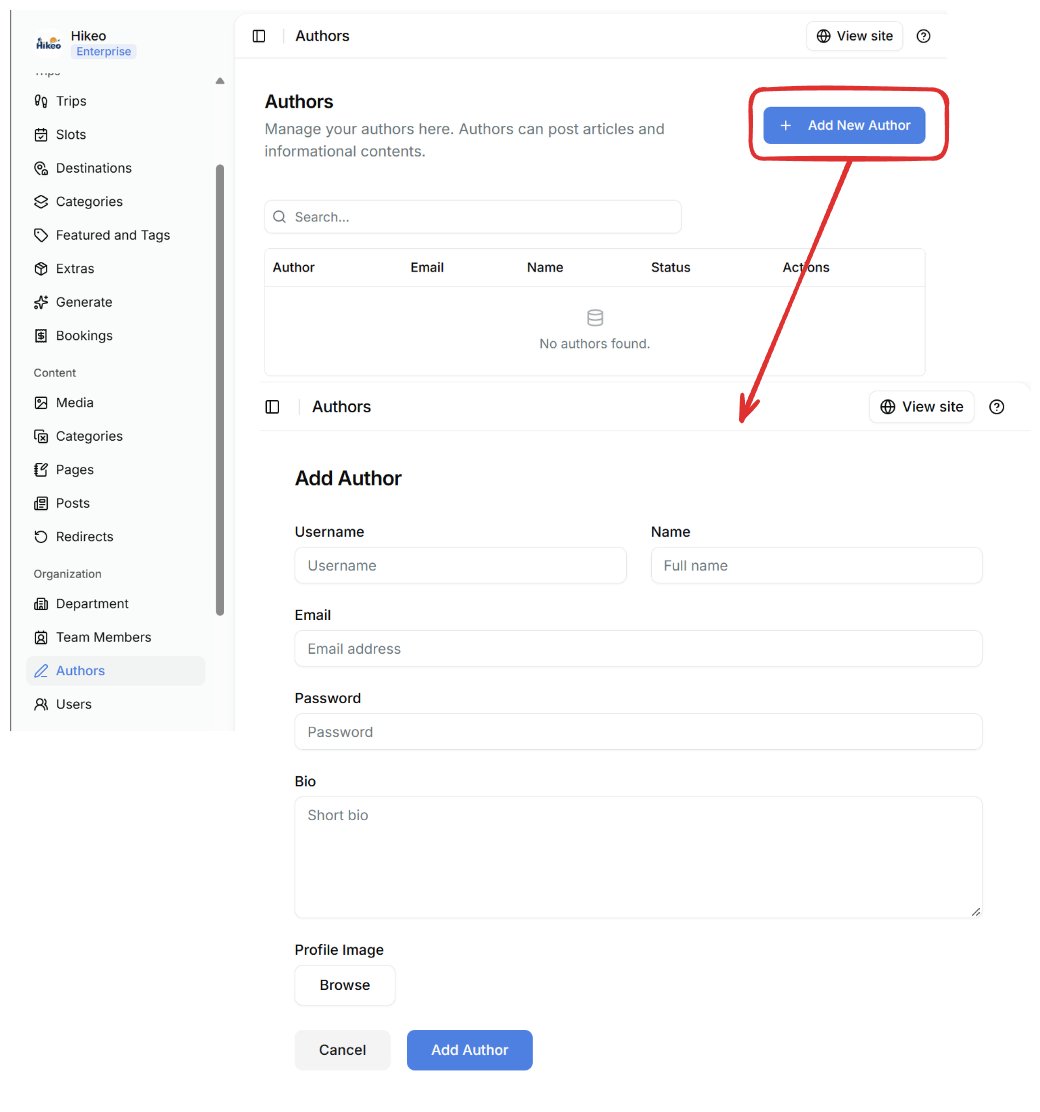
- Open Content → Categories and create categories if needed.
- Open Content → Pages, then select Create New.
- Enter title and body.
- Open SEO to choose or create a category, upload a cover image, set navbar visibility, edit the URL and add search metadata.
- Select Draft or Publish.
Blog posts
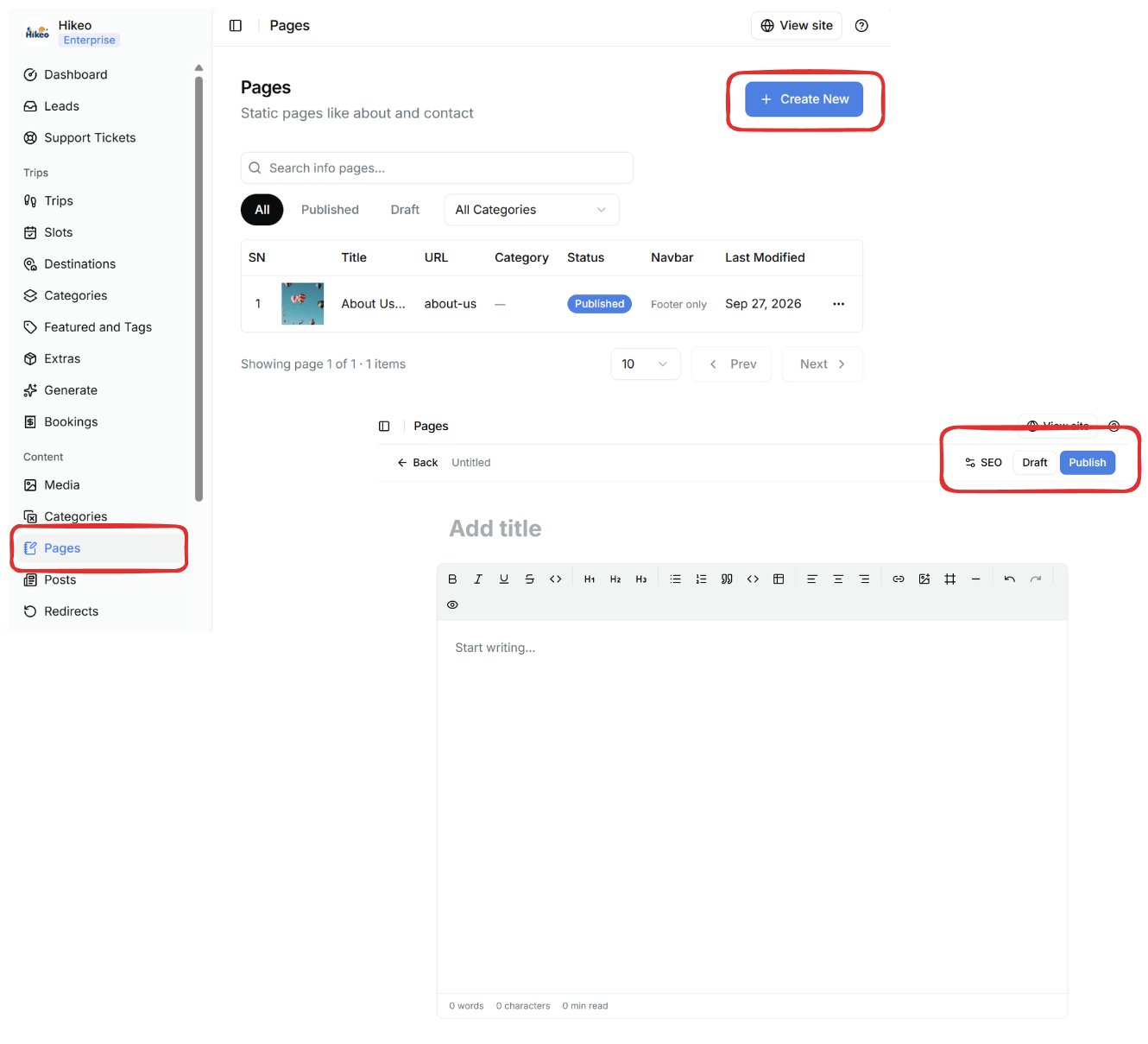
- Open Content → Posts, then select Add New.
- Enter title and article body.
- Open SEO to set category, cover image, slug, cover-image alt text, meta title and meta description.
- Select Draft or Publish.
Rich-text editor
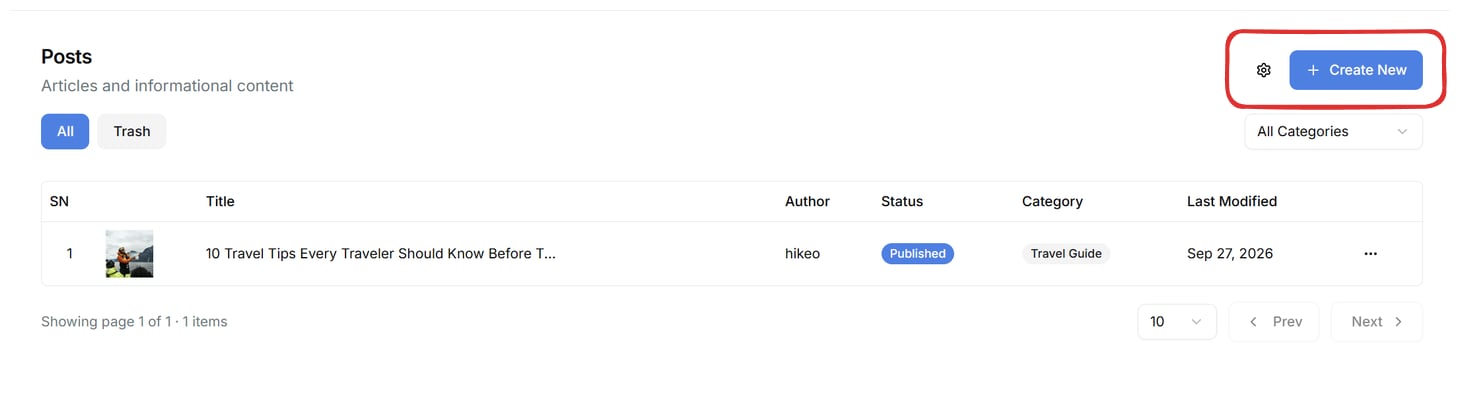
The toolbar supports headings, bold, italic, underline, lists, quotes, links, images, tables, embeds, undo and redo. Use one page title, then organize the body with Heading 2 and Heading 3. Add descriptive alt text to inserted images.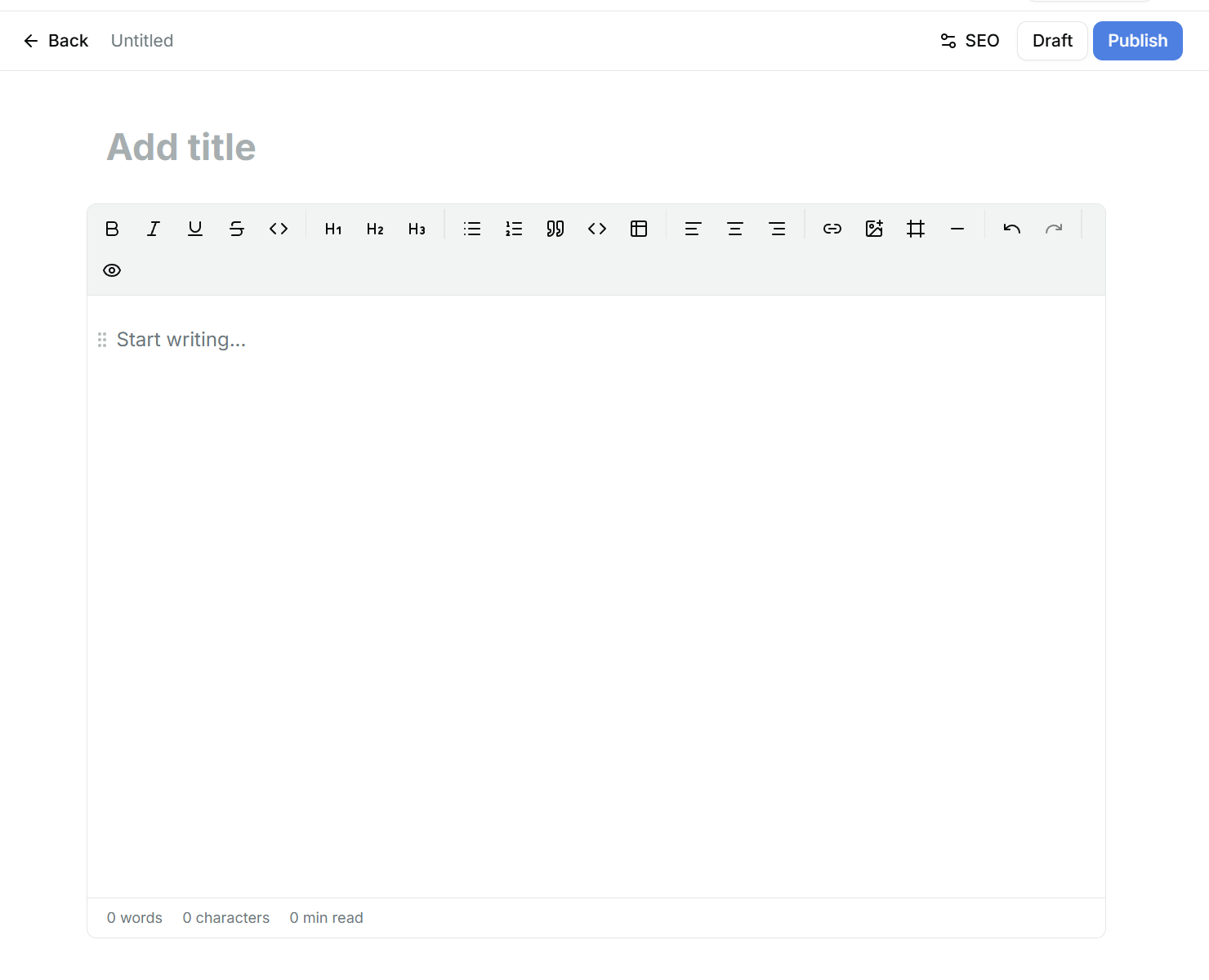
Authors
Open Organization → Authors to manage public author profiles used by articles. Authors are displayed content identities. Users are people who can sign in.