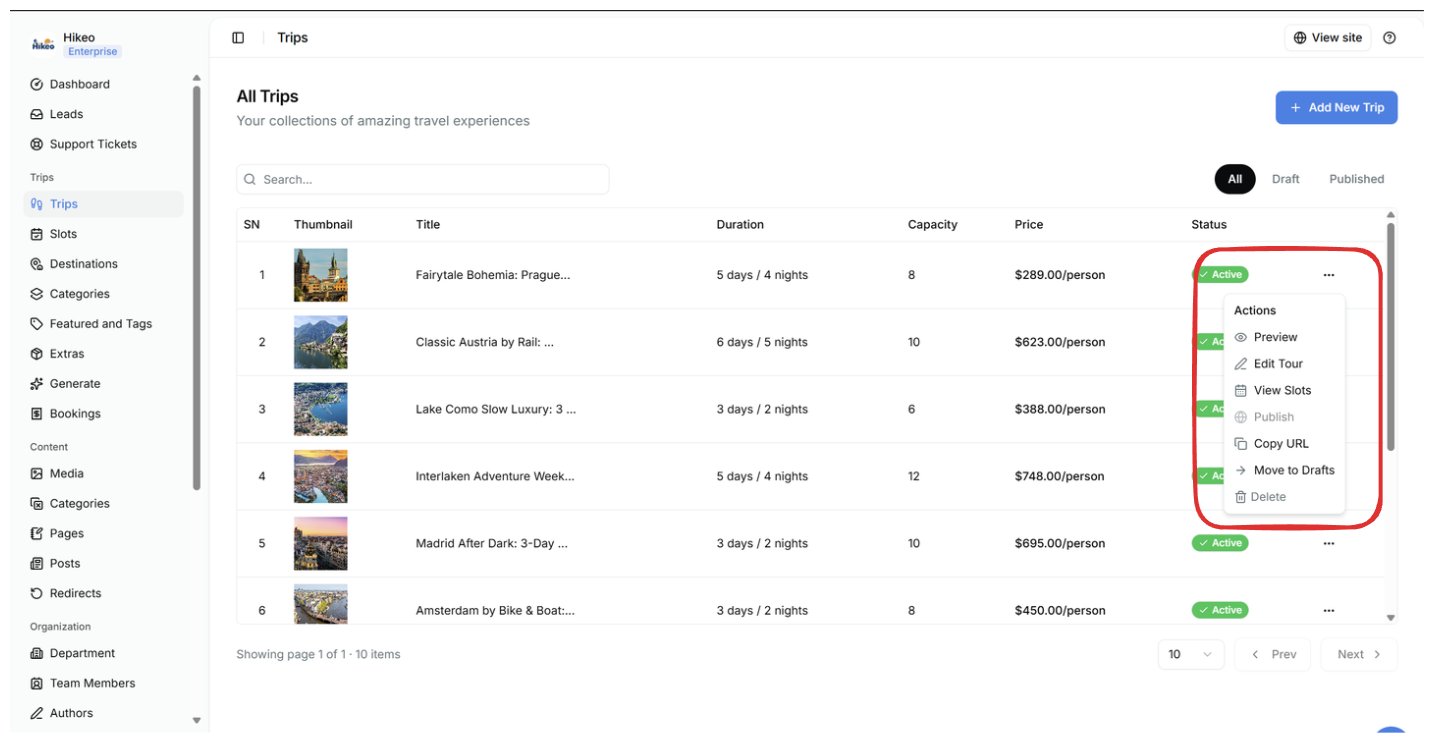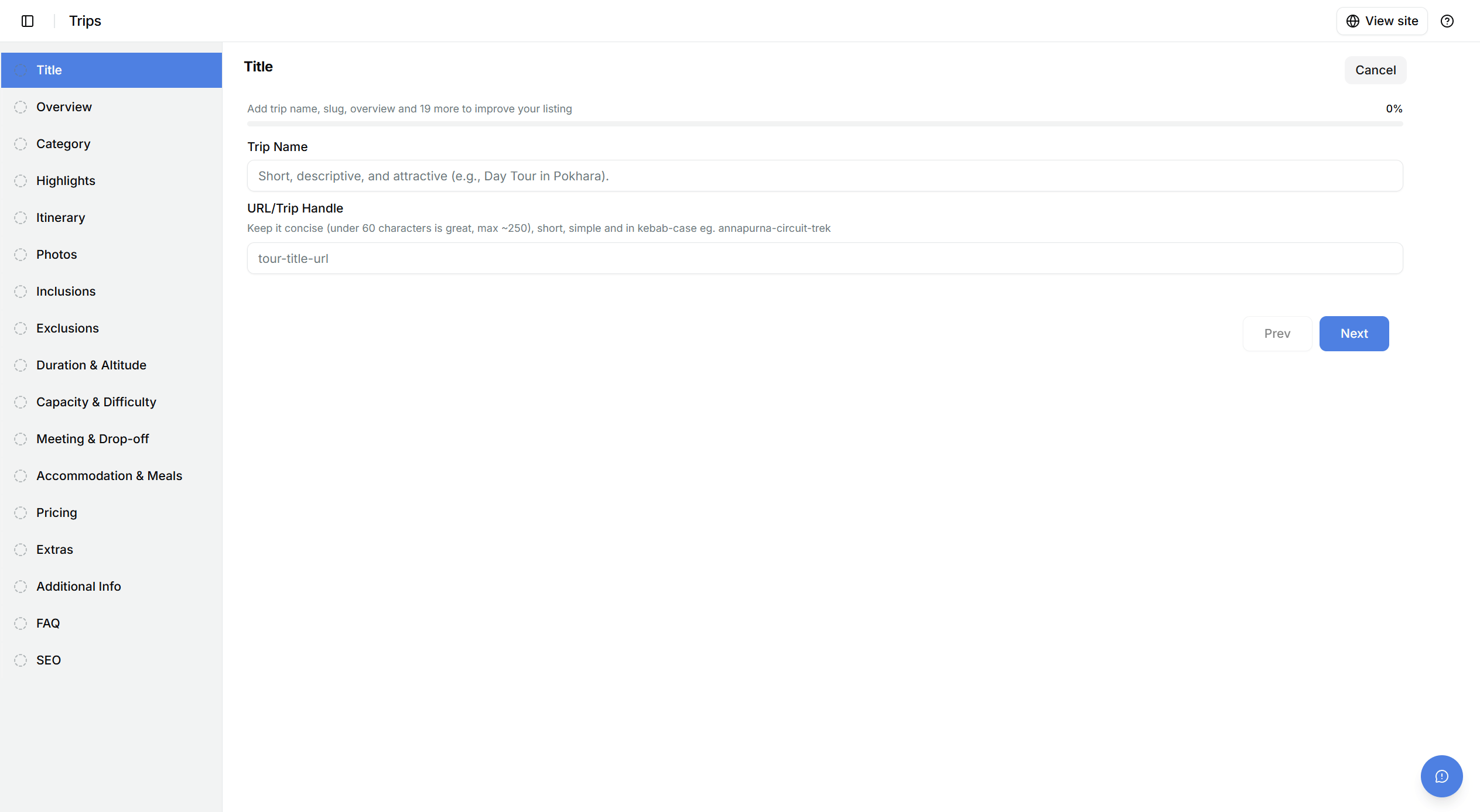
Open Trips → Trips, then select Add New Trip. The editor has 17 steps. Select Next after each step. Required-field errors keep you on the relevant step. The progress bar shows listing completeness, not publication status. Image 22

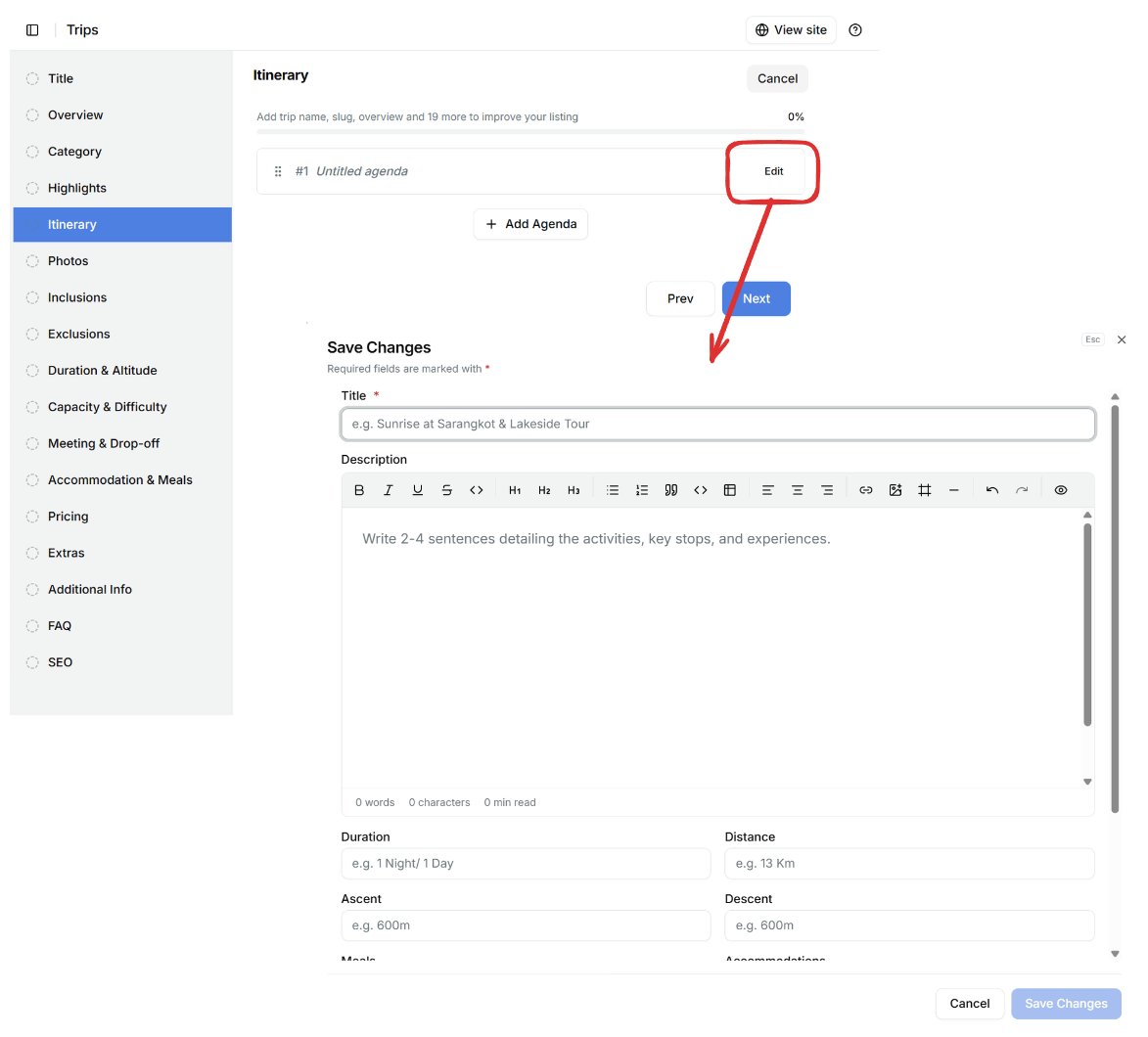
Build an itinerary

Image 23

Save the trip

  • New trip: select Finish on step 17.
  • Existing trip: select Save in the editor header.
  • Cancel clears the locally saved draft and returns to the previous page.
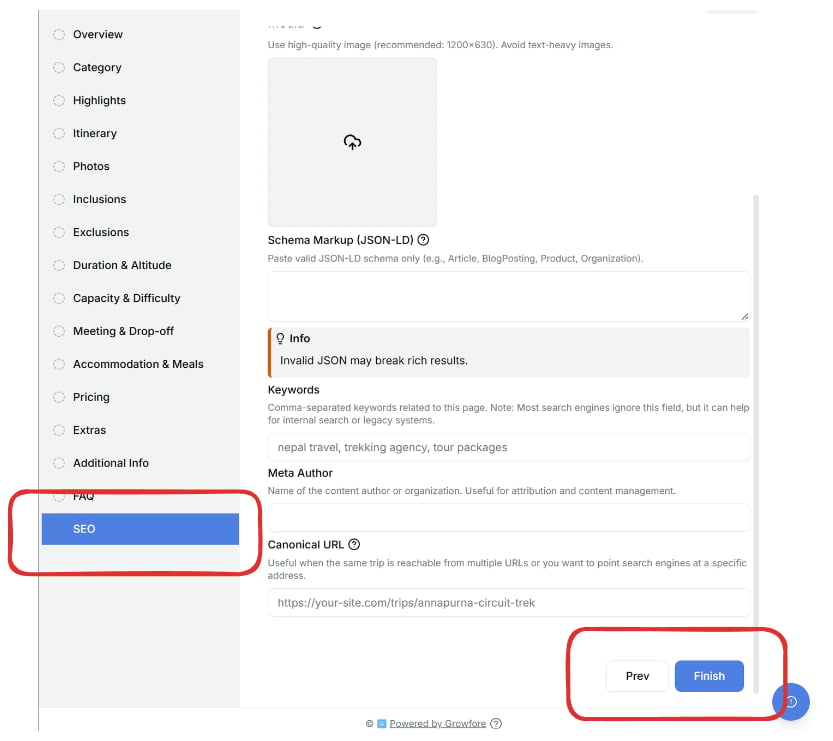
Note: The editor keeps a recovery draft in your browser only. It is not a published or server-saved trip. Finish or Save before switching device, browser or account. Image 24

Review and publish

  1. Return to Trips.
  2. Select a trip thumbnail, or open its actions menu and choose Preview.
  3. Confirm text, images, price, itinerary and links.
  4. Open actions and select Publish.
Use the status tabs to show All, Draft or Published trips. Other actions: Edit Tour (reopen the editor), View Slots, Copy URL, Move to Drafts (unpublish without deleting) and Delete (permanent). Trip count is limited by plan; a Plans link appears when you reach the limit. Image 25

AI trip generation

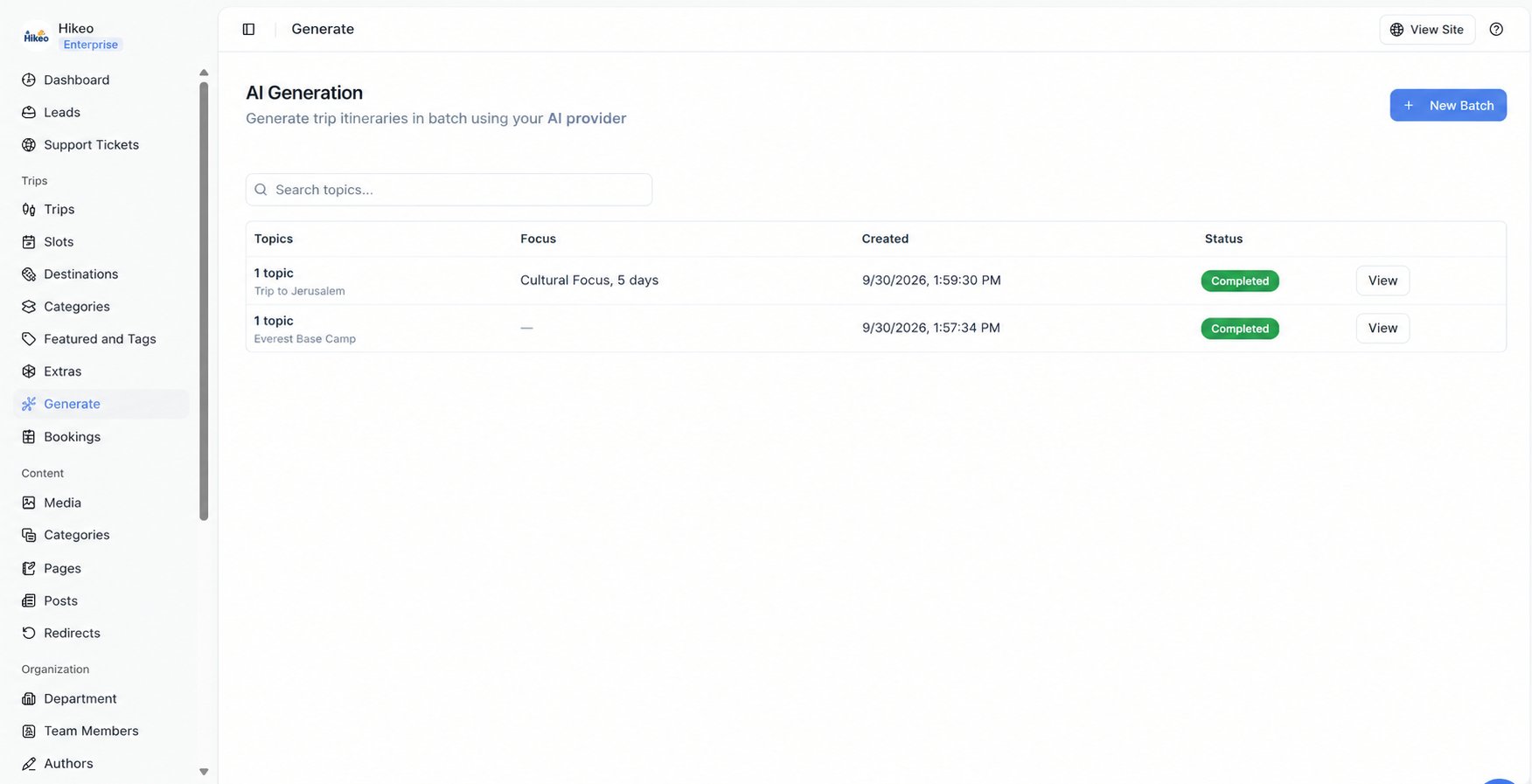
Generate requires the Launch plan or higher and your own Claude, OpenAI or Gemini API key. Save the key from profile menu → API Key, then open Trips → Generate. Review generated content before saving or publishing. You remain responsible for accuracy, pricing, safety information and claims. Ai Generate